
Enabling/Disabling Privileges for Users and the Impersonation Feature
Enabling/Disabling Privileges for Users
Question: How can I enable/disable privileges for a user?
Answer: Change the user Roles by assigning/removing properties.
1. Go to Main Menu > User & Access > Roles & Privileges
2. Click on the Role you want to change.
(Recommendation: In the case of wanting to revert changes, create a Copy of the current role and modify this one instead).
3. Select which users will have this Role.
4. Enable/disable the necessary privileges for this particular role.
4. Click on Save.
Note:
- If you change the role it will affect ALL the users in the same role.
- Read more about privileges and features to understand what each privilege means.
- Users can belong to multiple roles. The roles could have overlapping privileges. Make sure your users belong to the proper roles.
Impersonating Users: Test your user roles and the privileges assigned to them
Question: How can I verify if my privileges are working?
Answer: Verify the results using the impersonation feature.
In Site Admin, select the user you want to log in with.
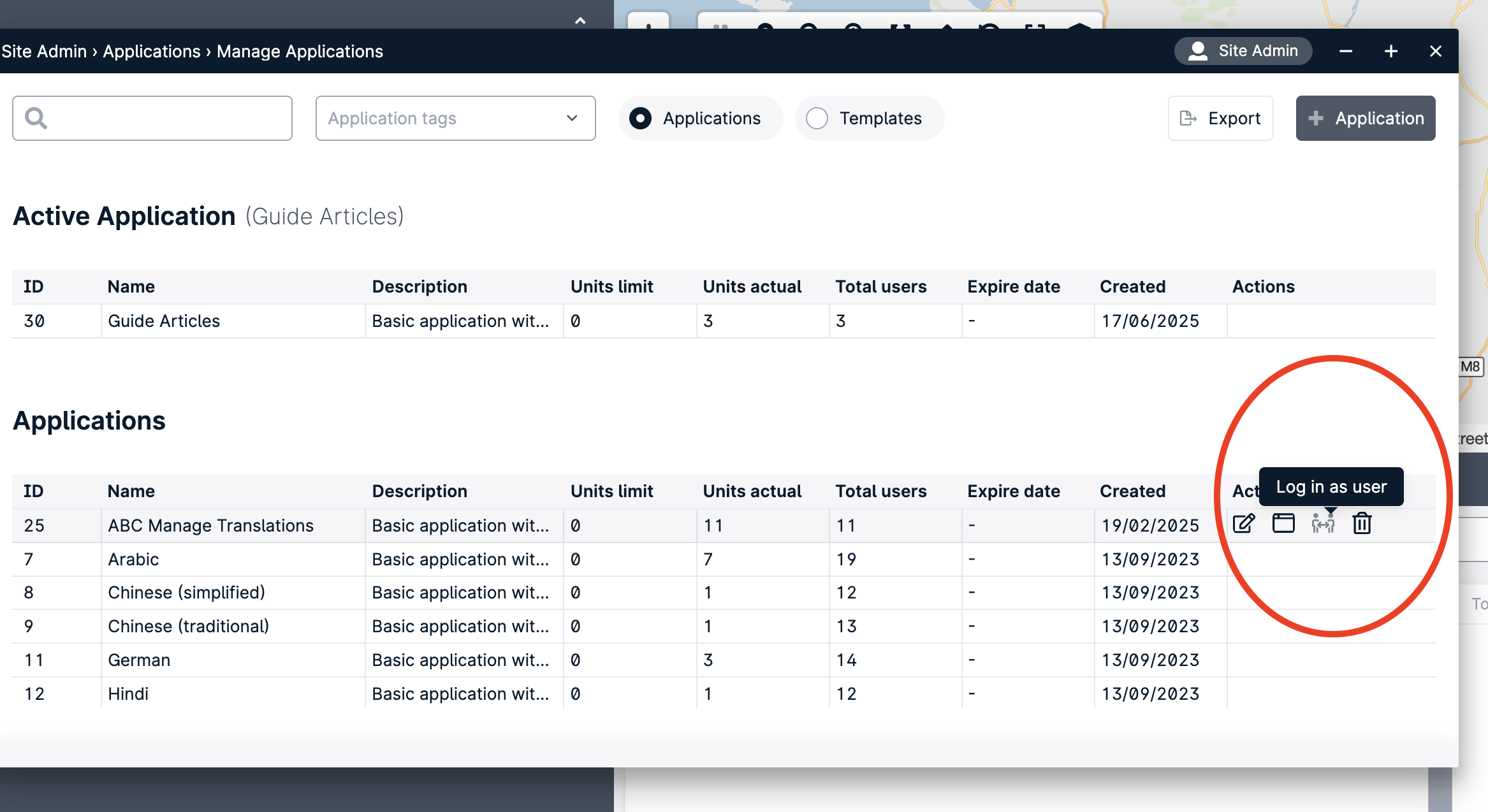
You can also log in as a user through Manage Applications.
To do this, go to Main Menu > Platform Settings > Manage Applications.
Next, hover your cursor over the desired application (as shown in the image below), and click “Log in as user.”
From the list, select the user you want to log in as.
Alternative method: using a different web browser to login with the impersonated user.
If you're using, for example, Firefox in the session with the Administrator, you can open a different browser (like Chrome) to log in with the impersonated user in the second browser (a 'private' session in the same browser also works).
This way, you will maintain the administrator session open in the original browser. This will let you make any additional modifications.
In the second browser, use the URL of your application and log in with the credentials of the user you want to test.
Note: A site admin user cannot impersonate another site admin user. For example, user A and user B are site admin users. User A can't login as user B and vice versa.